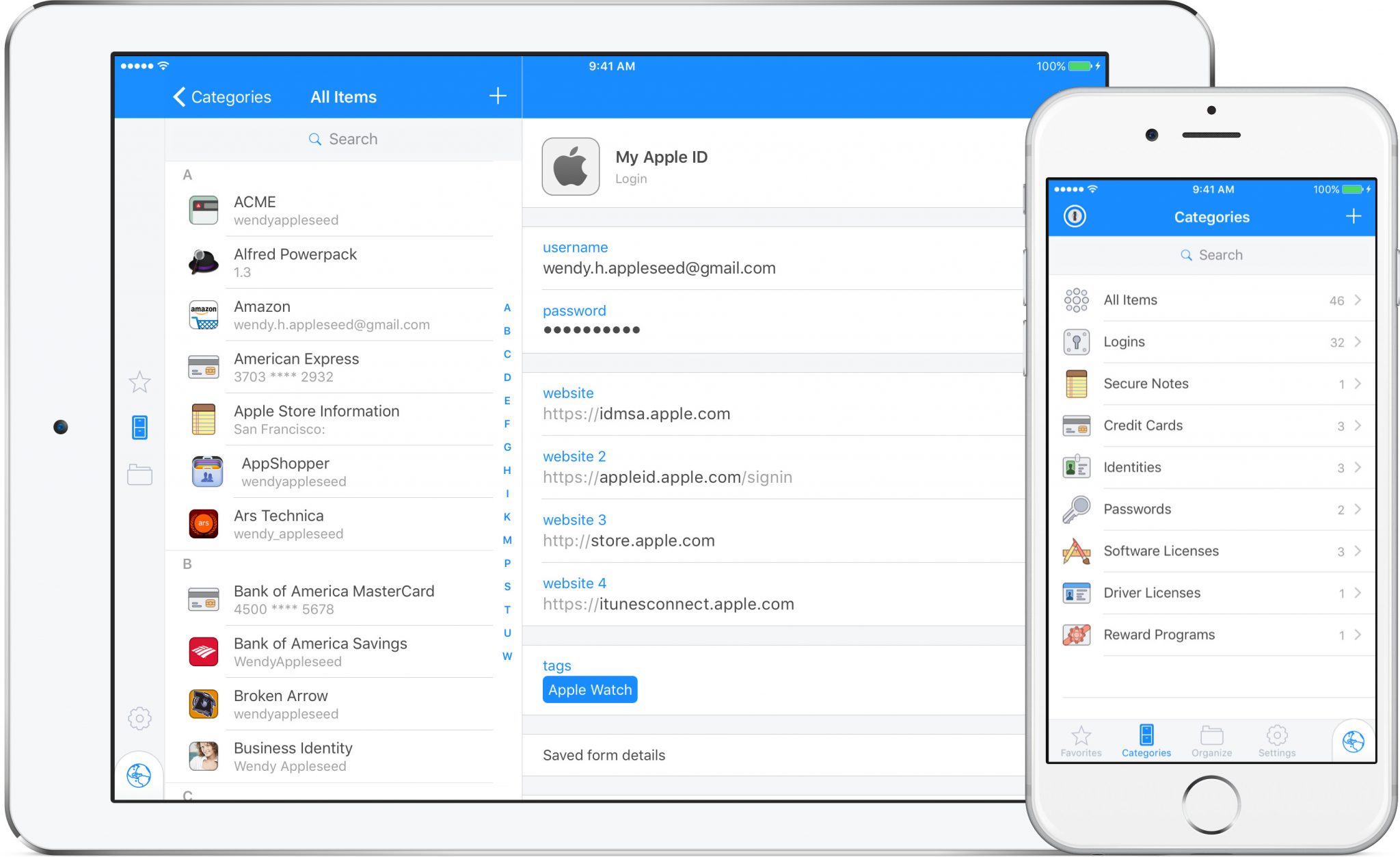
A password manager is one of the few security tools that makes the safer habit easier. Instead of reusing a memorable password across dozens of sites, you create a long unique password for each account and let the manager remember it. That reduces the damage when one service is breached and makes it more realistic to change a compromised password quickly.
The trade-off is concentration: the manager becomes an important account. Protect it with a long, unique primary password, the strongest multifactor authentication it supports, updated devices, and a recovery plan you have tested. A password manager is not a magic shield against phishing, malware, or a person who approves a fraudulent login prompt. It is a strong foundation, not the whole house.
What to choose first
For most individuals, choose a reputable manager that works on every device you use, generates passwords, supports autofill carefully, offers secure recovery options, and makes it easy to export your data if you ever leave. A built-in device or browser manager can be enough for someone who stays within one well-maintained ecosystem. A dedicated cross-platform manager may be better for mixed devices, family sharing, multiple browsers, or detailed vault organization.
We are not naming a universal product winner because plans, features, ownership, and device support change. The product category is more important than a star rating: choose the manager you will keep updated and use for every account. The free tier, paid personal tier, and family/shared tier are the useful price points.
The first five accounts to fix: primary email, password manager, financial accounts, phone carrier, and cloud-storage account. Enable multifactor authentication on each, record recovery options, and use a different generated password everywhere.Why unique passwords still matter
When you reuse one password, a breach at an unimportant service can become an attempt against your email, bank, shopping, or work accounts. Attackers know people reuse passwords and test stolen combinations elsewhere. A manager makes a unique random credential almost free: you do not need to invent it, type it repeatedly, or memorize it.
Length and uniqueness beat clever substitutions. A password such as a favorite name with an exclamation mark is predictable when it appears in a breach. Let the manager generate a long random password or passphrase that meets the site’s requirements. Do not reduce it to something memorable “just in case.” Your recovery plan—not a weakened password—is how you avoid being locked out.
Change passwords when a service reports a breach, when you suspect phishing, when you accidentally shared one, or when a high-value account’s access changes. Do not perform ritual rotation merely to create variations you will reuse. The priority is a new, unique credential and stronger account protection.
Built-in manager versus a dedicated manager
Built-in manager: best for one ecosystem
Apple, Google, Microsoft, and some browsers offer credential storage that synchronizes within their ecosystem. This can be a good low-friction choice for someone who uses the same phone, computer, and browser family every day. The manager may integrate smoothly with passkeys and device authentication. It is better to use a well-maintained built-in manager than to reuse passwords in notes or memory.
The trade-off appears when you mix operating systems, browsers, work and personal profiles, or need shared vaults. Before committing, confirm that the manager works where you actually log in. Test a new login on phone and computer, then test recovery without assuming the device you lose will be the one that stores every credential.
Dedicated manager: best for mixed devices and sharing
A dedicated manager can support multiple browsers and operating systems, shared vaults, granular items, and portable exports. It is often the better fit for a household with different devices or a person who wants one vault across work and personal environments where permitted. Evaluate the provider’s security documentation, support process, account-recovery options, and history of transparent communication.
Sharing needs special care. Share access through the manager’s approved feature, not by pasting a password into chat, email, or a shared document. Review shared items when a relationship, job, or household arrangement changes. The most secure shared password is one you can revoke and replace without asking everyone to search old messages.
Free, paid, and family plans
Free plan: appropriate for a person who needs basic generation, storage, and sync. Confirm whether device count, sharing, recovery, or attachments are restricted. A free plan is useful if it creates a lasting habit; do not let an artificial feature limit cause you to store some passwords safely and reuse others.
Paid personal plan: may add more devices, emergency access, advanced sharing, breach monitoring, secure file storage, or richer support. Pay when those features solve a real problem. Do not pay simply because a marketing page implies the free tier is unsafe.
Family plan: useful when each person has an independent vault plus controlled sharing for utilities, streaming, travel, or household accounts. Every adult should have their own primary password and MFA, not one shared master account. Set up recovery and emergency access deliberately, and revisit it when the family structure changes.
The primary password: the part you must remember
Your primary password should be long, unique, and never used anywhere else. A memorable multi-word passphrase that no one can infer from your life is a practical choice. Do not write it in an unprotected note, put it in the same browser profile without protection, or send it to a family member “for safekeeping.” If you record it physically for emergency reasons, store it as you would another sensitive document and decide who may access it.
Turn on MFA for the manager itself. Prefer phishing-resistant methods such as passkeys or hardware-backed security keys when the service supports them. An authenticator app is generally stronger than relying only on text messages, but any MFA is better than none. Keep recovery codes offline in a secure place, not only inside the vault they unlock.
Do not approve unexpected MFA prompts. An attacker who has your password may try repeated notifications until you tap through one. Open the service directly, check account activity, and use an independent support channel if you see an unexpected alert.
Passkeys, MFA, and passwords work together
Passkeys are a promising way to sign in without a traditional password. They are tied to a specific site and can resist common phishing attempts because the credential is not a reusable secret you type into a fake page. When a high-value service offers passkeys, consider setting one up and make sure you understand where it is stored and how it synchronizes or recovers.
Passkeys do not mean you can stop managing recovery. Keep a second trusted method where the service permits it, know what happens when you replace a phone, and review the account’s recovery email and phone number. Treat the recovery channel as high value: an attacker who controls it may be able to reset the account regardless of how strong the original password was.
MFA remains important for accounts that still rely on passwords. Start with email, financial services, cloud storage, social accounts, work systems, and the password manager. Prefer the strongest option a service provides and be skeptical of messages asking you to read back a code or approve a login.
Autofill: useful, but pay attention
Autofill saves time and can be a valuable warning sign. If your manager does not recognize the site you expected, stop and inspect the address. Look for the actual domain rather than trusting a logo, search result, or familiar-looking page. A password manager cannot protect you if you deliberately copy a password into a convincing fake site.
Set autofill to a mode you understand. Some people prefer tapping a prompt on each page; others use a keyboard shortcut or browser extension. The right balance is the one that prevents accidental entry without making you bypass the manager. Never turn off basic safeguards merely to shave one second from login.
Migration: move in an order that protects you
Begin with your primary email. Create a unique generated password, enable MFA, and verify recovery methods. Then secure the password manager itself. Next tackle financial accounts, mobile carrier, cloud storage, work accounts, social media, and shopping services. Delete old duplicate entries as you confirm the new login works.
Do not change everything at once if it creates confusion. Work in batches, use the manager’s notes field to record non-secret context, and sign out/in once to confirm the saved credential is correct. Keep an inventory of important accounts that have been migrated. If you import from a browser or old manager, delete the temporary export file securely once you confirm the import succeeded.
For complementary browser hygiene, see our browser privacy extensions guide. A clean browser profile and an updated manager work better together than a crowded collection of extensions with broad permissions.
Recovery, emergency access, and leaving a service
Read recovery instructions before there is an emergency. Know which email, phone, device, recovery code, or trusted contact the manager can use. Test the non-destructive parts of the process. If you cannot explain how you would regain access after losing a phone, your system needs work.
Emergency access can be useful, particularly for a family or someone responsible for shared accounts. Make the terms narrow: identify who can request access, which vault items they need, and how long the waiting period should be. Review it regularly. Emergency access is not a reason to give another person your primary password.
Keep portability in mind. A reputable manager should let you export your own vault in a documented format. Exporting creates a sensitive file, so do it only when needed, save it only in a controlled location, import it promptly, and securely remove the temporary copy afterwards. Being able to leave is part of choosing wisely.
What a password manager cannot solve
It cannot remove malware from a device, reverse a fraudulent payment, stop every social-engineering attack, or compensate for an unlocked laptop shared with strangers. Keep operating systems, browsers, and the manager updated. Use device screen locks and full-disk encryption where available. Be suspicious of unexpected calls, texts, and pop-ups that ask for credentials or one-time codes.
It also cannot decide which sites deserve your personal information. Fewer accounts mean fewer passwords, recovery channels, marketing emails, and breach notifications. Close accounts you no longer use, remove saved payment methods where appropriate, and be selective about signing up for coupons or one-time downloads.
Frequently asked questions
Is it safe to put all passwords in one manager?
A manager concentrates an important asset, which is why the primary password, MFA, updates, and recovery plan matter. For most people, the security benefit of unique generated passwords outweighs the risk of maintaining many weak or reused passwords.
Should I use browser password saving?
It can be a reasonable choice inside a trusted, updated ecosystem, particularly if it supports the devices you use. A dedicated manager may be better for cross-platform use, sharing, organization, or portability.
Do I still need MFA?
Yes. A manager improves password hygiene, but MFA adds protection if a password is stolen. Use the strongest method available, especially for email, finance, cloud, work, and the manager itself.
What if I forget my primary password?
Use the recovery method you set up in advance. Do not weaken the primary password to make it easier to remember. Plan recovery before migrating your important accounts.
The bottom line
Choose a manager that fits your devices and use it for every account. Protect it with a unique primary passphrase, MFA, offline recovery information, and updated devices. Start with email and financial accounts, use generated passwords, adopt passkeys where sensible, and stay alert for phishing. The best manager is not the one with the loudest feature list; it is the one that makes safer behavior your normal routine.
Browser extensions and device access
Use the manager’s official browser extension or application from the official store or provider site. Verify the publisher before installing it; password managers have valuable permissions, and look-alike extensions are not harmless. Keep the extension, desktop app, browser, and operating system updated. An old browser plugin is not a security strategy.
Consider whether the manager should stay unlocked. A short automatic lock window is less convenient than an always-open vault, but it reduces exposure when you walk away from a computer or hand a device to someone. On a shared household device, give each person their own operating-system account and password-manager account. Do not merge everyone’s credentials into one vault because it feels simpler on day one.
Use biometric unlock only as a convenience layer on a device you control. It does not replace the primary password, recovery plan, or device screen lock. If a device is lost, use another trusted device to review active sessions, revoke access when the manager provides that option, and change critical credentials if you suspect compromise.
Work accounts need a separate decision
Follow your employer’s security policy for work credentials. A personal manager may be perfect for personal accounts yet prohibited for business secrets, customer data, or administrative systems. Do not copy work passwords into a personal vault merely to make logging in easier. If an employer provides a manager, use the approved sharing and offboarding features, and remove access promptly when your role changes.
For a small business, give each person an individual account and share only the specific credentials required. Avoid one universal master password, shared browser profile, or spreadsheet of logins. Review shared vault membership regularly, especially when contractors, employees, or administrators leave. Password management is also access management.
What to do after a breach or phishing mistake
If a service reports a breach, start by changing that service’s password to a new generated one. If the old password was reused anywhere, change every other account that used it. Review recent account activity, payment methods, forwarding rules in email, connected apps, recovery settings, and active sessions. Enable MFA if it was missing.
If you entered a password on a suspicious page, act quickly. Open the legitimate service by typing the address yourself or using a trusted bookmark, change the password, sign out of other sessions, and contact the service through its official support channel if the account is high value. Do not call a phone number from the suspicious pop-up or reply to the original message.
If you gave away an MFA code or approved an unexpected prompt, treat it as urgent. Change the password, review recovery methods, remove unfamiliar devices, and alert the financial institution or employer when relevant. A password manager helps you recover faster because it makes unique replacement credentials easy; it cannot reverse a fraudulent approval on its own.
Run a recovery drill
Once the vault is populated, practice a low-risk recovery scenario. Sign into the manager on a second device, locate a recovery code, confirm that the backup email works, and identify the current MFA method. Do this without deleting the primary device or forcing an actual lockout. The goal is to find gaps while you still have normal access.
Review this plan after changing phones, moving, changing an email address, or altering a family arrangement. Delete obsolete recovery numbers and old devices. If you have a trusted person designated for emergency access, make sure their own account is secure and that they understand what the arrangement does and does not allow.
Our approach: We explain the trade-offs behind every recommendation. If you buy through an Amazon link, SuperGrail may earn a commission—our research remains independent.